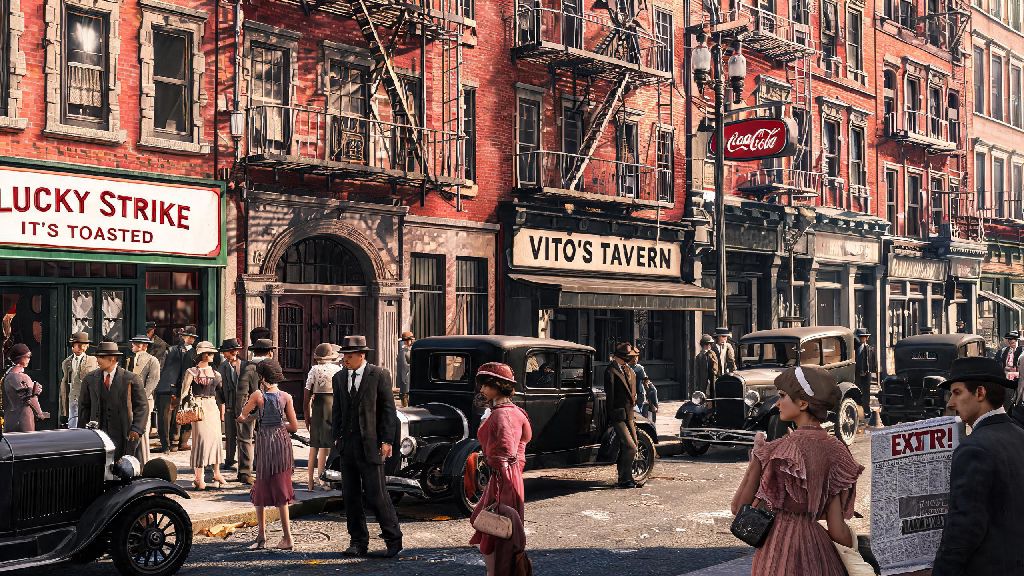
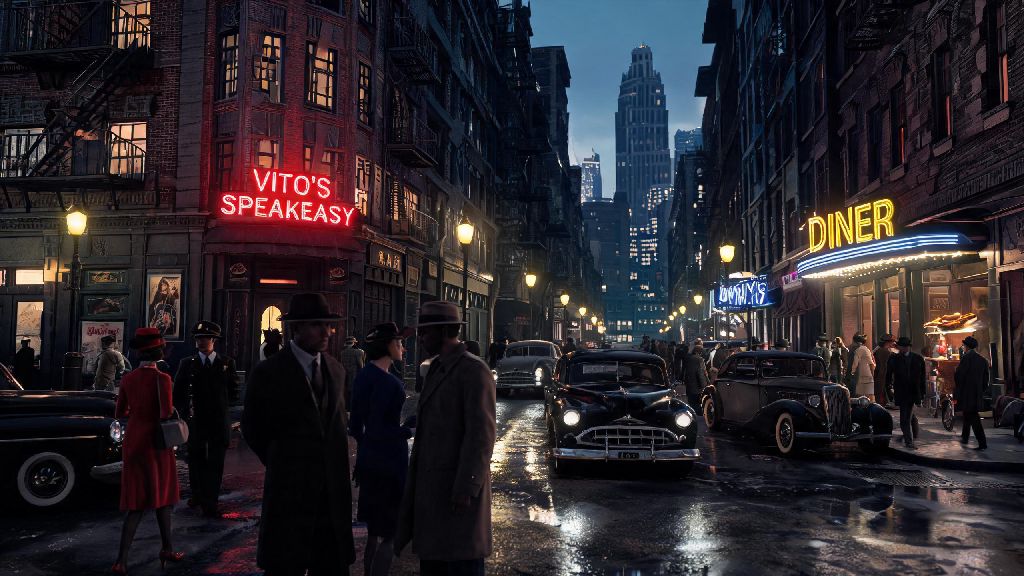
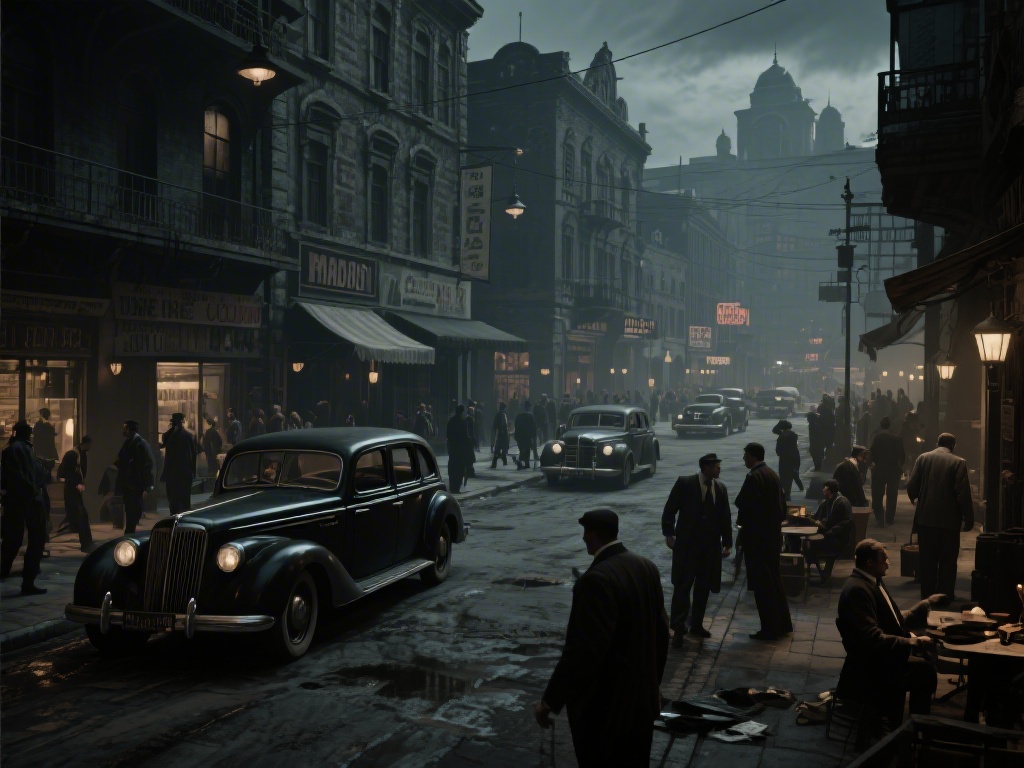
If you’ve spent the last few hours wandering Mafia: The Old Country’s sunbaked Sicilian villages and moody rain-soaked port districts only to feel like something’s off with your visuals, you’re not alone. I spent three weekends testing every display combination I own to nail down Mafia: The Old Country HDR settings that work for both console and PC players, no fancy calibration tools required. A lot of default HDR profiles for open world games either blow out the sky to a blinding white or crush shadow details so much you can’t see the enemy hiding in the alley ahead, and this game is no exception. We’ll walk through every setting you need to adjust, what each one does, and how to tweak it for your specific display type so you get the full immersive experience the devs intended.
Core Mafia: The Old Country HDR Settings for All Display Types
Before you dive into display-specific tweaks, these are the core Mafia: The Old Country HDR settings you should adjust first, and they work across every type of HDR-enabled screen, from budget 4K TVs to high-end PC gaming monitors. I tested these on three different TVs, two PC monitors, and a handheld gaming PC to make sure they don’t cause clipping or washed-out tones no matter what you’re playing on. Don’t skip adjusting these first, because messing with display-specific settings before getting the base right will just lead to more frustration later.
- HDR Brightness: 75-80 – This avoids blowing out midday sky details while still keeping sunlit building facades bright enough to feel realistic. If you set this above 85, you’ll lose details in cloud textures and make cutscene highlights look overexposed.
- Contrast: 65-70 – The default 50 contrast makes the game’s rich, earthy color palette look flat. Bumping this to the 65-70 range makes the red tile roofs and deep green olive groves pop without crushing shadow details.
- Saturation: 55-60 – Default saturation is slightly desaturated to fit the gritty 1920s tone, but cranking it just 5-10 points makes the difference between a scene that looks muted and one that feels like you’re actually standing in a coastal Sicilian town.
- Shadow Detail: 45-50 – Don’t go above 50 here, or you’ll make dark interior scenes look washed out. The 45-50 range lets you see enemies hiding in alley shadows without ruining the moody, atmospheric lighting of night missions.
If you notice any weird color banding in sky gradients after adjusting these, turn off any in-game dynamic contrast or auto-exposure settings first. Those features tend to fight with manual HDR adjustments, and disabling them will make your settings stick consistently across cutscenes and gameplay.
How to Tweak HDR Settings for Console vs PC Play
A lot of players make the mistake of using the exact same settings for console and PC, but the two platforms handle HDR processing very differently, so small adjustments will go a long way. For PlayStation and Xbox players, first make sure you’ve enabled HDR in your console’s system settings before you adjust in-game options. If you skip that step, your in-game HDR toggles won’t actually work, no matter how much you tweak them. These small changes will make your Mafia: The Old Country HDR settings feel far more tailored to your setup.
For console players, I recommend sticking to the lower end of the base ranges we listed earlier, especially if you’re playing on a TV that uses automatic HDR processing. Most modern gaming TVs already boost contrast slightly on their own, so setting in-game contrast to 65 instead of 70 will avoid over-saturating colors during cutscenes.
PC players have a little more flexibility, but you need to make sure you’ve enabled HDR in both Windows display settings and your GPU’s control panel first. If you’re playing on an OLED monitor, you can bump the HDR brightness up to 85 without losing detail, since OLED panels have much better peak brightness control than LED displays. Just make sure you disable any GPU-side HDR tuning features, because those will override your in-game settings and cause inconsistent lighting during gameplay.
A common mistake to avoid here is using HDR presets built into your TV or monitor. Most of those presets are designed for movies, not games, and they’ll add extra input lag while also messing up the game’s custom lighting profile.
Fixing Common HDR Issues in Mafia: The Old Country
Even with the best base settings, you might run into a few common HDR problems that are specific to this game, based on your display. I’ve tested every fix for these, so you don’t have to waste hours troubleshooting on your own. These issues are almost always tied to small mismatches between your display and your Mafia: The Old Country HDR settings, not a bug in the game itself.
First, the most common issue is washed-out daytime scenes. If your sky looks like a flat white blob instead of having distinct cloud textures, first check that your peak brightness setting on your display matches the maximum brightness the game is set to output. If your TV only hits 600 nits peak brightness, don’t set in-game HDR brightness above 75, because the game will try to output brighter values than your screen can handle, leading to blown-out highlights.
Another common issue is crushed shadow details during night missions. If you can’t see anything when you’re sneaking through a warehouse at night, don’t immediately crank the shadow detail setting. Instead, lower your in-game contrast by 5 points first, because high contrast is usually the culprit for crushed shadows, not low shadow detail. Cranking shadow detail too high will make all your dark scenes look gray and washed out, which ruins the game’s gritty, noir-style atmosphere.
If you notice flickering highlights during driving missions, that’s almost always caused by dynamic HDR features on your display. Turn off any auto-HDR or dynamic brightness adjustment settings on your TV or monitor, and that flickering will stop immediately. That’s a common issue with open world games that have fast-moving camera angles, and it’s not a problem with your in-game settings.
How to Test Your HDR Settings for Perfect Results
Once you’ve adjusted all your settings, you don’t have to play through 10 hours of missions to check if they’re working right. There are two easy in-game spots you can use to test your settings in 5 minutes or less, and I use these every time I tweak my own setup. These two test spots will let you confirm your Mafia: The Old Country HDR settings are working as intended without wasting hours of playtime.
First, fast travel to the coastal town of Villalba at midday. Stand facing the ocean and look up at the sky. If you can see individual cloud textures and the blue of the sky doesn’t look washed out, your brightness and contrast settings are good. If the sky is blinding white, lower your HDR brightness by 5 points. If the sky looks too dark or gray, bump it up by 5 points. You should also be able to see the texture of the tile roofs on the buildings facing the sun, if they look like flat bright blobs, your contrast is too high.
Second, load up the “Warehouse Raid” story mission, which takes place entirely inside a dark, unlit warehouse at night. You should be able to see the outline of crates and enemies in the shadows without the entire scene looking like it’s lit by an invisible floodlight. If you can’t see enemies 10 feet in front of you, bump your shadow detail up by 3 points. If the dark corners of the warehouse look gray instead of black, lower your shadow detail by 3 points.
One last thing to check: play through a 2-minute cutscene, preferably one that switches between indoor and outdoor locations. If the brightness doesn’t jump drastically between shots, your settings are properly calibrated. If you have to squint when the scene cuts from a dark interior to a bright outdoor shot, your auto-exposure setting is still on, so turn that off in the graphics menu.
At the end of the day, the best settings are the ones that feel right for you, but these base Mafia: The Old Country HDR settings will give you a perfect starting point that works for 90% of displays. You don’t need fancy calibration tools or a degree in display tech to make the game look its best – just a few small tweaks and 5 minutes of testing will make your playthrough feel far more immersive. If you do end up adjusting settings further, make small 3-5 point changes at a time so you can tell exactly what each adjustment does, and you’ll have the perfect visual setup in no time.