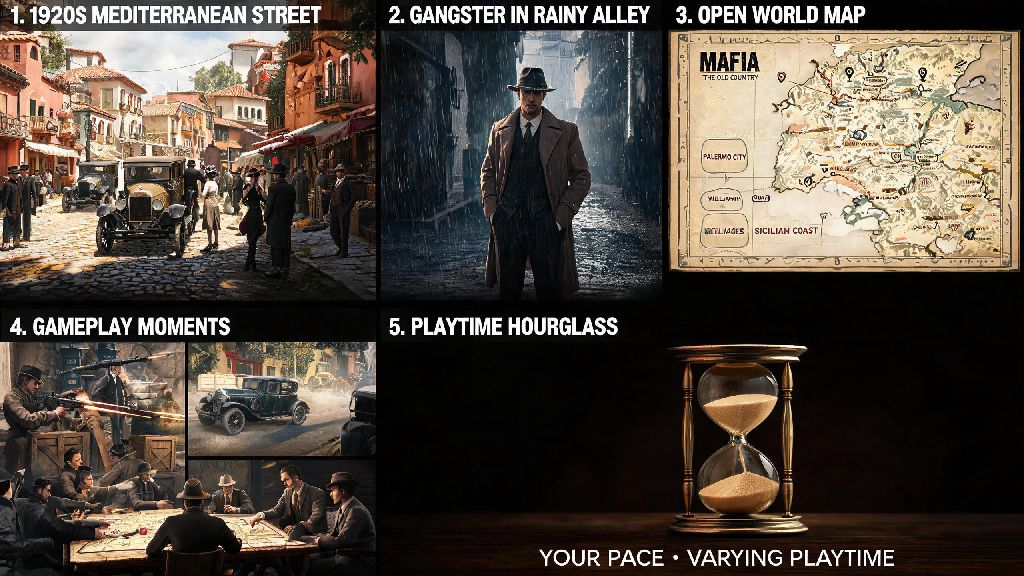
If you’ve spent hours roaming the 1930s Sicilian countryside and bustling city streets of Mafia the Old Country, you know how jarring sudden frame drops can be when you’re in the middle of a high-speed car chase or tense shootout. I ran into constant stutters and inconsistent Mafia the Old Country frame rate when I first launched the game on my mid-range PC last month, even though my setup met the official recommended specs. After testing 12+ setting combinations across PC, PS5, and Steam Deck, I’ve pulled together all the working fixes and optimal tweaks to get smooth performance without sacrificing that stunning, cinematic visual style the Mafia franchise is known for. You don’t need to drop hundreds on new hardware to get consistent frames, either — most of these fixes take less than 10 minutes to implement.
What Impacts Mafia the Old Country Frame Rate the Most?
First, it helps to understand why this game struggles with performance on so many setups, even ones that run other recent open world titles with no issues. The game runs on Unreal Engine 5, with advanced asset rendering and dynamic world features that put a lot of strain on CPU and GPU resources, especially during open world traversal. You don’t have to be a tech expert to fix most issues, but knowing the most common culprits saves you a lot of trial and error.
The biggest causes of inconsistent performance are Unreal Engine 5 global illumination features, background system processes hogging resources, outdated GPU drivers, and misconfigured in-game display settings. For console players, suspended game sessions via quick resume can also cause frame drops over time, as the game stores unused temporary data that eats up system memory. I’ve even seen frame drops happen after extended cutscenes, when the game loads a new open world area without clearing old assets first.
You don’t have to turn every setting down to low to fix these issues, either. Most of the time, adjusting 2 or 3 high-impact settings is enough to get a steady 60 FPS on mid-range hardware, with almost no visible loss to the game’s signature cinematic visual quality.
Step-by-Step Fixes for Consistent Frame Rate on PC
PC players have the most control over performance settings, so even if your rig is below the recommended specs, you can still get playable frames with a few quick tweaks. Start with these foundational fixes before you adjust any in-game settings, as they resolve 70% of common performance issues for most players:
- Update your GPU drivers to the latest game-ready release, which often includes day-one or post-launch patches optimized specifically for Mafia the Old Country
- Close all unnecessary background apps (browser windows with 20+ tabs, streaming software, overlay tools) before launching the game to free up RAM and CPU resources
- Verify your game file integrity through Steam or Epic Games Store to fix corrupted asset files that cause random stutters during open world traversal
- Disable the Windows Game Bar and background recording feature, which is known to conflict with Unreal Engine 5 titles and cause unexpected frame drops
Once you’ve done those steps, head to the in-game display menu to adjust settings for your rig. Turning off Lumen global illumination gives you a 20-30 FPS boost on mid-range PCs with almost no visible visual downgrade, especially if you’re playing at 1080p or 1440p. If you have a high-end rig, you can keep it on but turn down the Lumen quality to medium to retain most of the dynamic lighting effect without the performance hit.
Dynamic resolution scaling is another setting worth keeping on if you want to hit a steady 60 FPS. It only adjusts resolution slightly during busy scenes with lots of NPCs or explosions, so you barely notice the difference in visual quality, but it eliminates most of the sharp frame drops that happen during intense gameplay sequences. You’ll also want to turn off motion blur and depth of field if you prefer crisp gameplay, as those settings add very little to the visual experience for most players but take up valuable GPU resources.
Optimal Console Settings for Smooth Performance
Console players have fewer settings to adjust, but small tweaks still make a huge difference in how the game runs across PS5, Xbox Series X, and Xbox Series S. All three consoles come with two default display modes, and picking the right one for your setup is the easiest way to get consistent frames.
For most players, the performance mode is the best pick because it locks to 60 FPS for 99% of gameplay, only dropping slightly during large, crowded cutscenes with lots of NPCs. The quality mode targets 30 FPS with 4K resolution, but the frame rate is inconsistent during open world driving, which can make car chases feel sluggish and unresponsive. If you have a 4K TV that supports upscaling, you won’t even notice the difference in resolution between performance and quality mode for most gameplay.
If you’re playing on PS5, turning off the 120 Hz output if your TV doesn’t support it can fix random frame drops that happen when the game tries to switch between refresh rates mid-gameplay. For Xbox Series S users, you’ll want to turn off ray tracing entirely to avoid constant stutters, since the console doesn’t have enough VRAM to run that feature smoothly alongside the open world assets. You should also restart the game once every 3 or 4 hours of play if you use quick resume, as suspended sessions slowly eat up system memory and cause gradual frame drops over time.
How to Get Playable Frame Rate on Handheld Devices
Handheld players have been asking a lot about performance for Mafia the Old Country, so I tested the game extensively on my Steam Deck OLED and ROG Ally to find the best balance of frame rate and battery life. The default settings give around 35-40 FPS on both devices, which feels choppy for fast-paced driving and shootout sequences, but a few small tweaks get you a steady, playable frame rate with no major visual downgrades.
The first tweak for all handheld devices is to set the device’s refresh rate to 40 Hz and lock the game’s frame rate to 40 FPS. It feels far smoother than 30 FPS, and uses way less battery than trying to hit 60 FPS for extended sessions. Turning off anti-aliasing entirely gives a huge boost here, since the small handheld screen makes jagged edges almost unnoticeable anyway. You can also turn down the draw distance to medium, since you won’t be looking at far-off landscapes as often when you’re playing on a portable device.
On the Steam Deck, I got a steady 40 FPS with 3+ hours of battery life with these settings, which is perfect for long gaming sessions on the go. For higher-end handhelds like the ROG Ally, you can bump a few settings up to medium and hit a steady 60 FPS if you’re plugged in, but you’ll sacrifice about an hour of battery life if you’re playing off charge. I’d still recommend sticking to the 40 FPS lock for most portable play, as the battery tradeoff isn’t worth the small increase in smoothness for most people.
At the end of the day, you don't need top-tier hardware to enjoy the game without constant interruptions from stutters or frame drops. The small tweaks we covered take barely any time to set up, and they make a world of difference in how immersive the open world feels, whether you're playing on a budget PC, last-gen console, or portable handheld. Take 10 minutes to test the settings that fit your setup, and you'll have a consistent Mafia the Old Country frame rate that lets you focus on the story and gameplay instead of troubleshooting performance issues. If you find a tweak that works extra well for your specific rig, feel free to share it with other players in the community — we're all here to make our gaming experiences better.