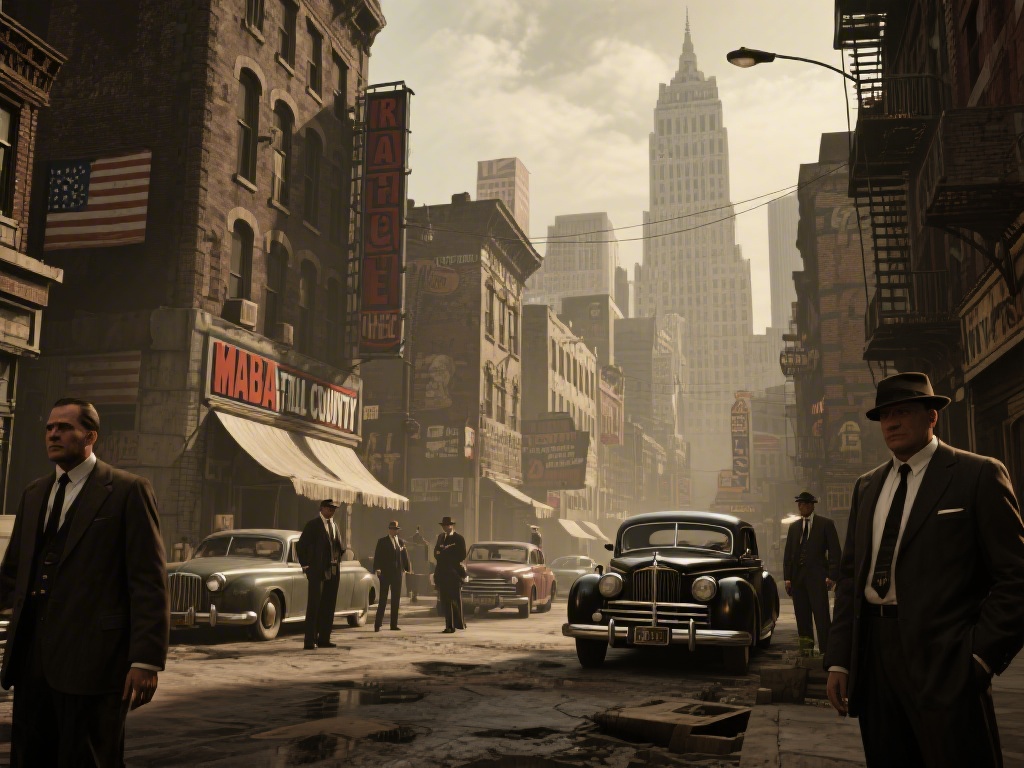
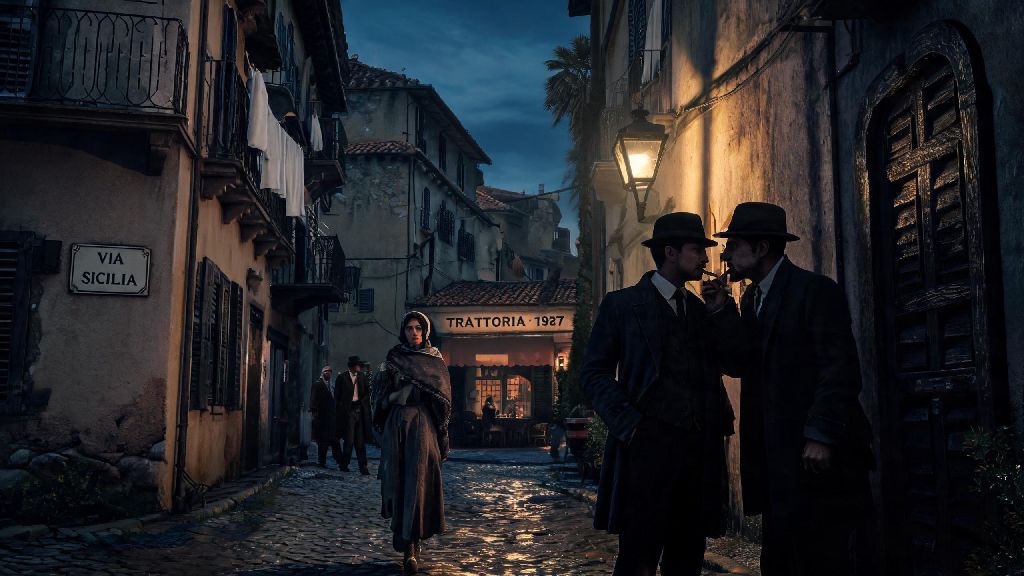
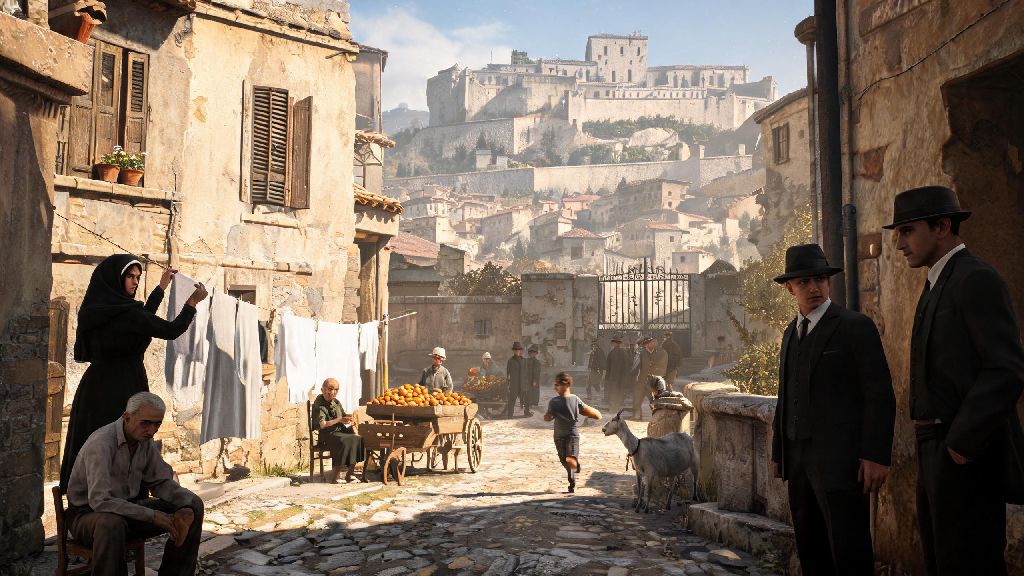
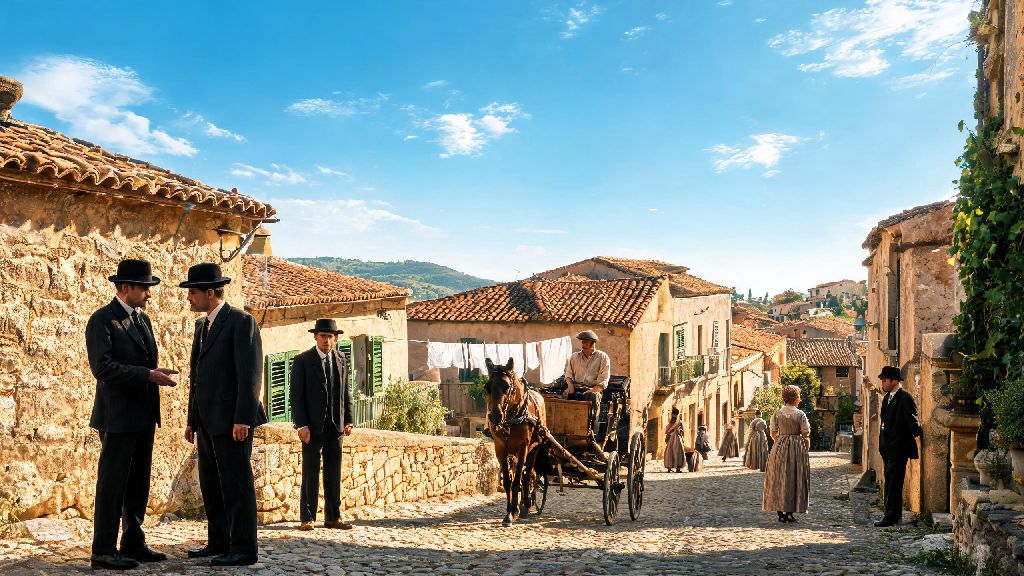
If you’ve ever booted up Mafia: The Old Country only to get hit by stuttering mid-car chase or washed-out graphics that make the 1930s rural Italian countryside look dull, you know how frustrating bad settings can kill a playthrough. I’ve spent 40+ hours tweaking every slider across three different PC builds to nail the right balance between visual flair and consistent performance, and I’m breaking down exactly what works here. We’re covering everything from display tweaks to accessibility options that most players skip, so you don’t have to waste hours testing on your own. If you’re here for the Mafia The Old Country best settings that work for both high-end and mid-range rigs, you’re in the right place.
Core Mafia: The Old Country Best Settings for All Rig Types
Start with your display settings first, because these have the biggest impact on both performance and input lag, no matter what hardware you’re running. 1080p is the sweet spot for mid-range rigs if you want 60fps consistently, even in crowded town areas with lots of NPCs and moving vehicles. If you have a high-end GPU with 12GB+ of VRAM, you can bump up to 1440p or 4k, but you’ll want to enable upscaling to keep frame rates stable during fast action sequences.
Always match your in-game refresh rate to your monitor’s native rate to avoid unnecessary input lag that can make gunfights and high-speed chases feel unresponsive. If you have a G-Sync or FreeSync compatible monitor, turn off VSync entirely—you’ll get no screen tearing and far lower input lag than you would with VSync enabled. If you don’t have adaptive sync, turn VSync on to eliminate tearing, but know you might see a small 2-3% drop in overall frame rates.
Console players have fewer sliders to tweak, but the core rule still applies: pick performance mode over quality mode unless you only play slowly and prioritize cinematic visuals over smooth gameplay. The 60fps you get from performance mode makes driving on dirt backroads and close-quarters gunfights feel far more responsive, and most players won’t notice the minor drop in resolution unless they’re sitting inches from their screen.
Visual Settings That Balance Immersion and Performance
The game’s detailed, hand-crafted world is one of its biggest strengths, so you don’t want to turn all settings down to low just for extra frames. Start with texture quality first: this setting has a surprisingly small impact on FPS, so you can crank it to high even on mid-range rigs with 6GB of VRAM. The high-resolution textures for vintage cars, stone farmhouses, and hand-painted store signs make the world feel far more lived-in, and you lose almost nothing in terms of performance.
Set shadow quality to medium unless you have a high-end GPU, because dynamic shadows in open world areas are the single biggest FPS drain in the game. Medium shadows still look realistic enough for most players, and you’ll see a 15-20% boost in frame rates in crowded areas compared to high or ultra shadows. For anti-aliasing, stick to TAA over FXAA or SMAA—TAA eliminates jagged edges without blurring fine details like text on signs or character facial features, which is a big win for immersion.
There are a handful of settings you can turn down or turn off entirely without noticing a major difference in visual quality, and they’ll give you a nice performance boost for free:
- Motion blur: Turn this off entirely to reduce motion sickness during fast car chases and make gunfights feel more responsive
- Ambient occlusion: Drop to low or medium for a 10-15% FPS boost with almost no visible difference to scene lighting
- Depth of field: Disable for gameplay, only turn on for photo mode if you like cinematic shots
- Chromatic aberration: Turn off to eliminate edge blurring and make the screen look sharper at all times
Enable HD texture packs if you have at least 8GB of VRAM—they’re free to download on all platforms, and they make the game’s rural Italian setting feel far more authentic. The only exception is if you’re running on a very old hard drive, as the higher resolution textures can cause slightly longer load times, but that’s a small tradeoff for the visual upgrade.
Gameplay and Accessibility Settings You Shouldn’t Skip
Most guides only cover graphics settings, but adjusting your gameplay and accessibility sliders will have a way bigger impact on how much you enjoy the game long-term. If you play with a controller, turn aim assist down to low instead of leaving it on the default high setting. High aim assist feels far too sticky, especially during close-quarters gunfights, and it will make it harder to aim at specific enemies in crowded spaces. If you play on mouse and keyboard, turn mouse acceleration off entirely to get more precise control over your aim.
Turn on the "permanent mini-map" option as soon as you start the game. The default dynamic mini-map hides when you’re not moving, which is super annoying when you’re trying to navigate to a mission marker or find hidden collectibles off the main road. You’ll also want to turn down driving sensitivity by 20% from the default setting—default driving sensitivity is way too twitchy, and you’ll swerve off dirt roads constantly if you leave it at the default level.
Disable "mission waypoint auto-lock" if you like exploring off the beaten path. This default setting snaps your camera back to the mission waypoint every few seconds when you’re driving, which makes it impossible to look around for hidden chests, side missions, or scenic spots to stop for photos. If you care about following the story closely, turn on large subtitles with 50% background opacity— the voice acting is fantastic, but it’s easy to miss lines when you’re driving or in the middle of a gunfight.
Don’t forget to adjust your auto-save frequency to every 5 minutes, either. The game only auto-saves after you complete main missions by default, so you could lose 30+ minutes of exploration progress if you crash your car or get killed in a random encounter with rival gang members. It’s a tiny tweak that will save you a lot of frustration down the line.
How to Test if Your Settings Are Working for Your Playstyle
You don’t have to stick exactly to the settings I laid out here—every rig and every playstyle is different, so you should test any changes you make to make sure they work for you. The best place to test settings is the open world area outside the first main town, because it has a mix of open countryside, small clusters of buildings, and wandering NPCs that will push your hardware the same way most of the game does.
Load into that area, drive around for 10 minutes, and keep an eye on your frame rate. If you’re dropping below 30fps consistently on PC or below 60fps on console, drop shadow quality down one level first, then adjust ambient occlusion if you still see drops. If you’re getting frame rates consistently above 70fps on PC, you can bump up shadow quality or turn on ambient occlusion for a small visual upgrade with no noticeable performance hit.
Do a 10-minute test run before starting a long story mission—you don’t want to have to stop mid-cutscene or in the middle of a tense gunfight to adjust sliders. If you mostly play story missions in built-up towns, you can prioritize lower shadow quality to keep frame rates stable in crowded areas. If you mostly spend your time exploring the countryside and doing side missions, you can crank draw distance up to high to avoid seeing villages or mountains pop in as you drive across the map.
It’s also okay to have two separate preset profiles if you switch between play styles. I have one performance profile for when I’m doing fast-paced story missions with lots of car chases and gunfights, and one visual profile for when I’m exploring or taking photos for my in-game album. It takes 10 seconds to switch between them, and it lets me get the best of both worlds without having to tweak sliders every time I change what I’m doing.
At the end of the day, the right settings are the ones that let you enjoy the game without distractions, not the ones that look the best on a spec sheet. You can tweak these suggestions as much as you want to fit your own rig and play preferences, and you don’t have to stick to one setup forever—swap between performance and visual presets if you’re switching between story missions and photo mode, for example. The Mafia The Old Country best settings are the ones that make you feel like you’re actually running a criminal operation in 1930s Italy, not fighting with your screen to get through the next mission. Take 10 minutes to adjust these sliders before your next playthrough, and you’ll be shocked at how much more immersive the whole experience feels.